UX Framework
The Gaze Cursor
Interaction Pattern
Overview
The Gaze Cursor is a controller-free interaction module that utilises eye-tracking or head-tracking kinematics to navigate and interact with virtual environments. By translating the user's line of sight into a spatial pointer and employing a time-based dwell threshold to execute activation events, this pattern entirely circumvents the necessity for manual controller input or fine motor dexterity during tasks such as user interface navigation and object selection.
Implementation Specification
To successfully execute The Gaze Cursor, the application architecture must process gaze kinematics and manage temporal state evaluations without reliance on peripheral hardware triggers.
- Kinematic Raycasting: The system must continuously project a ray from the defined tracking origin (either the centre of the Head-Mounted Display for head-tracking, or the calculated focal vector for eye-tracking) to detect spatial intersections with user interface canvases and interactable colliders.
- Dwell State Evaluation: Upon intersecting an interactive element, the system must instantiate a timer. This temporal state is evaluated continuously; if the spatial intersection is maintained without breaking the collider bounds for the defined duration (the dwell threshold), the system executes a standard OnClick or interaction event.
- Continuous Visual Feedback: To communicate the temporal state to the user, the cursor must render real-time progress. This is mandated to take the form of a dynamic reticle (e.g., a radial fill graphic or a targeted colour interpolation sequence) that visually scales from 0% to 100%, strictly mapped to the dwell timer's progression.
- Interruption Logic: If the raycast ceases to intersect the target element before the dwell threshold is reached, the timer and visual feedback must instantly reset to zero, actively cancelling the pending event to prevent misclicks.
- Conditional Visibility: The visual cursor may be rendered persistently, or designed to manifest solely when intersecting a valid interactable object, allowing developers to maintain environmental immersion when the user is not actively engaging with interfaces.
Trigger Button
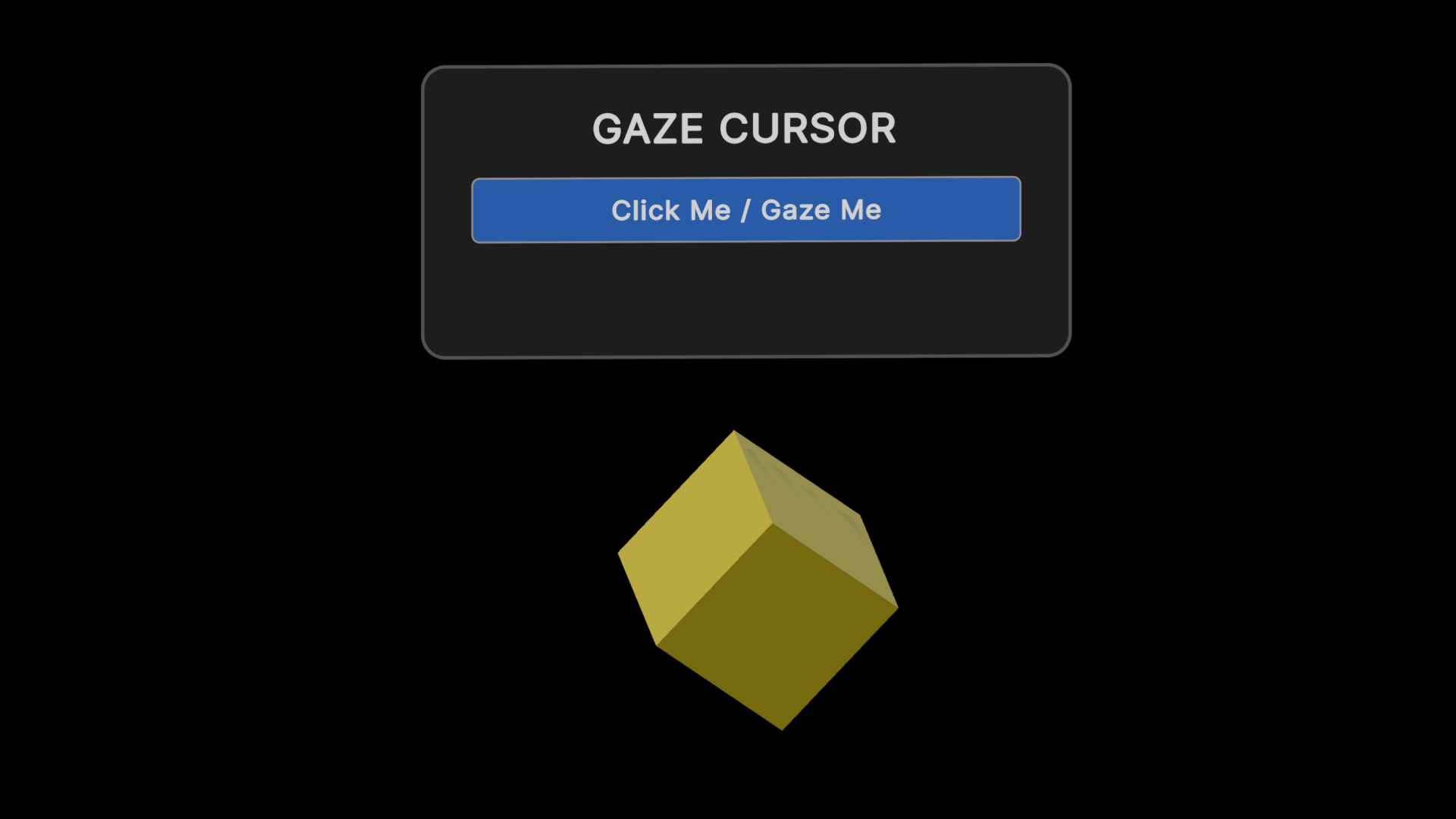
1. Gaze at Target: The user directs their gaze toward the desired interactive element. In this instance, the user is looking at the 'Gaze Me' button on a simple UI. The button may have a subtle highlight to indicate it is the current point of regard.
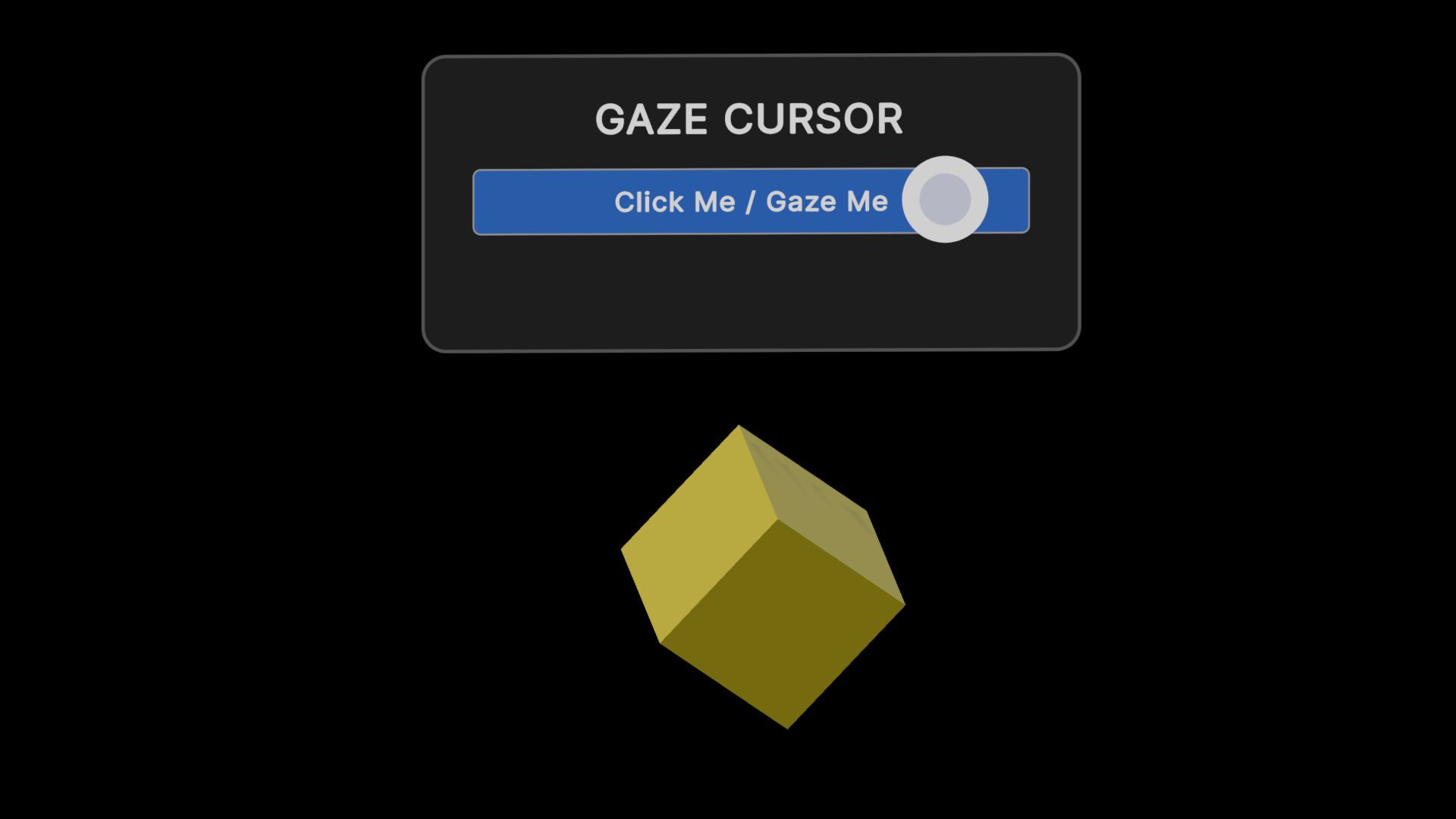
2. Dwell and Feedback: To initiate the selection, the user must maintain their gaze on the target. A visual cue, such as a filling ring or growing reticle, appears to provide feedback. This indicator informs the user that a selection is in progress and indicates the passing time before the action is triggered.
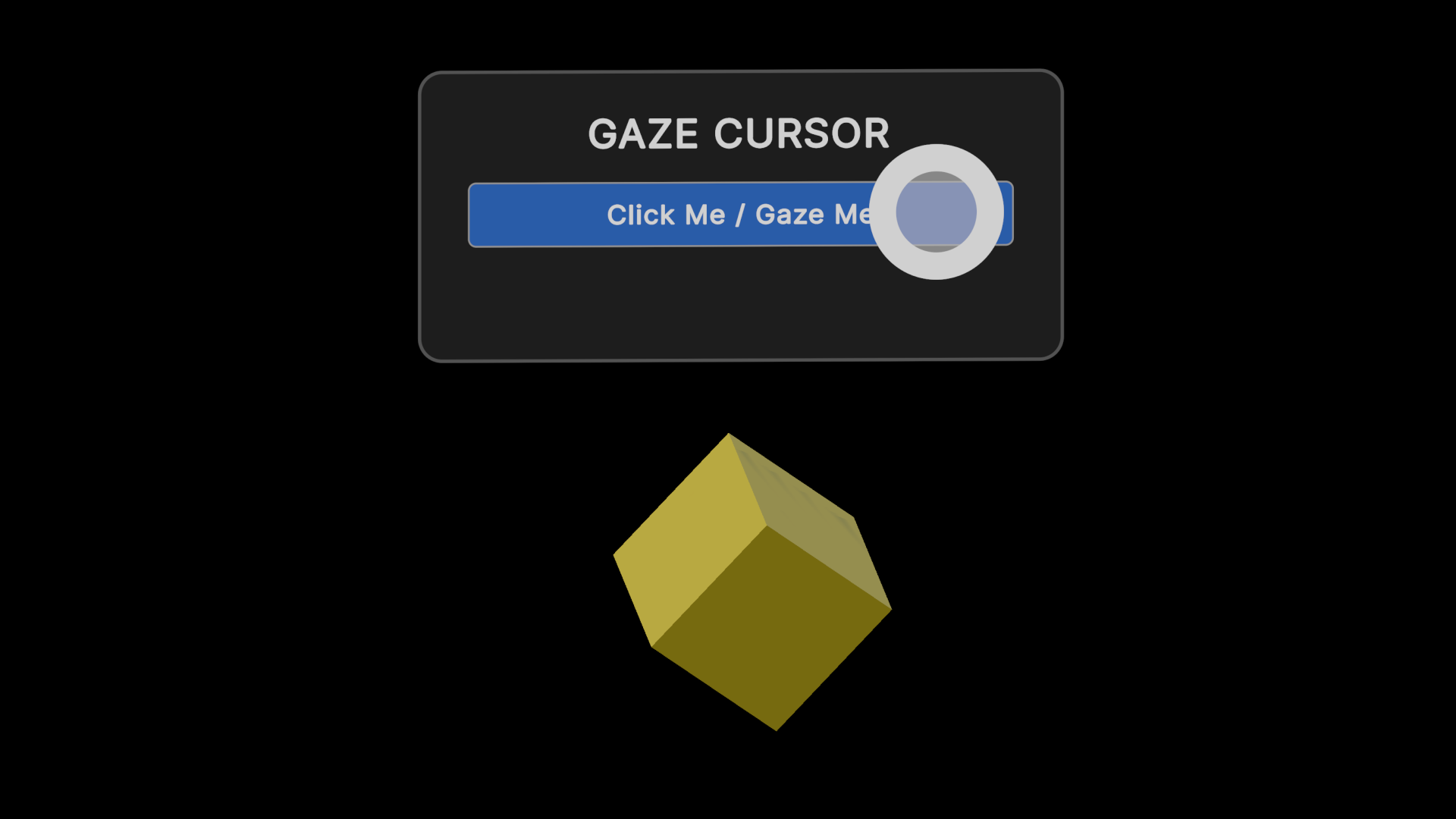
3. The user continues to gaze at the interactive element. The visual cue continues to indicate passing time.
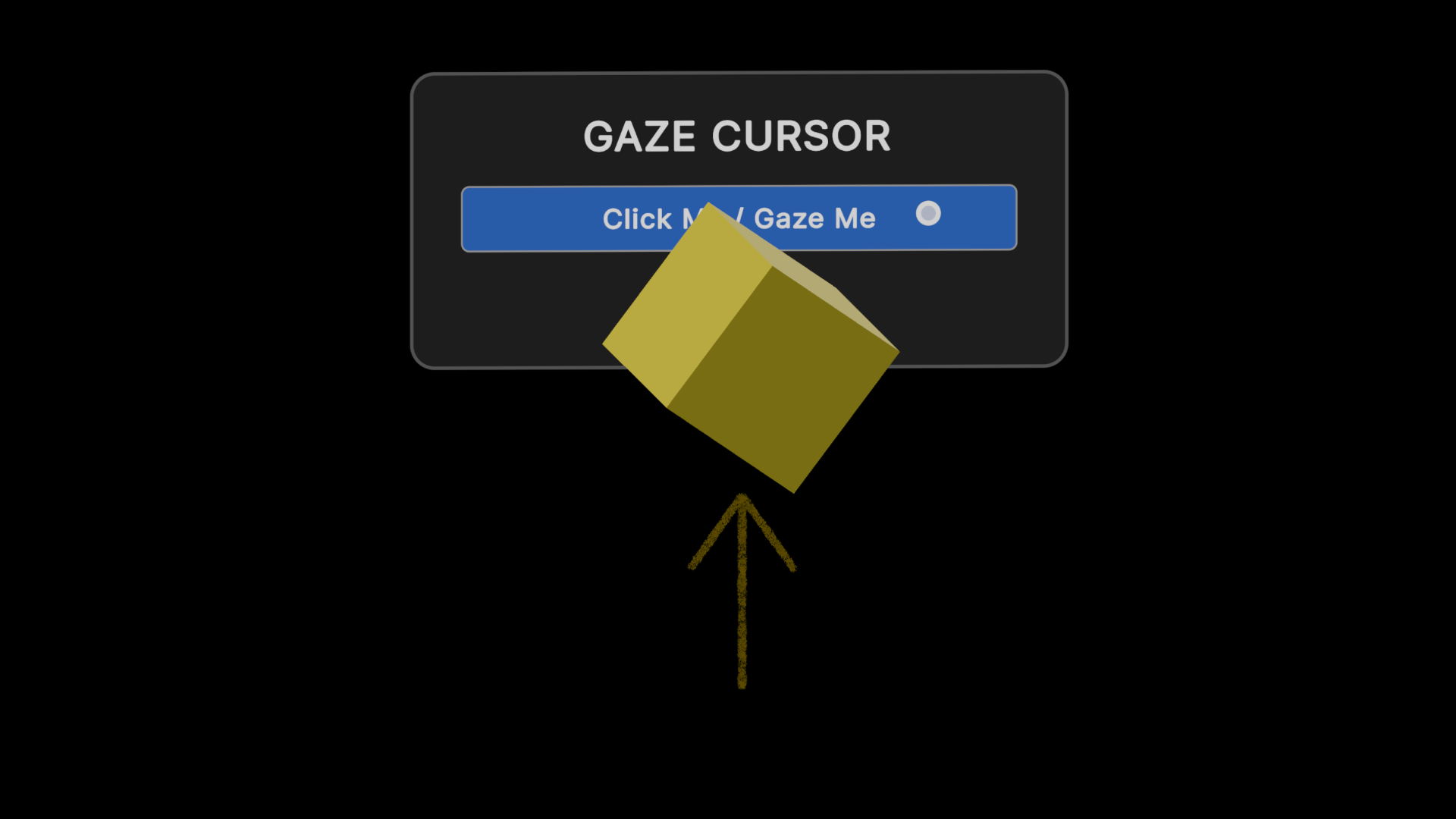
4. Selection Complete: Once the dwell time has been met, the system triggers a 'click' event. The visual feedback (e.g. the reticle) disappears, and the action state changes to 'selected'. Here, the cube performs a 'jump' action, confirming the action was successful and indicating the changed state.
Trigger Interactive Object
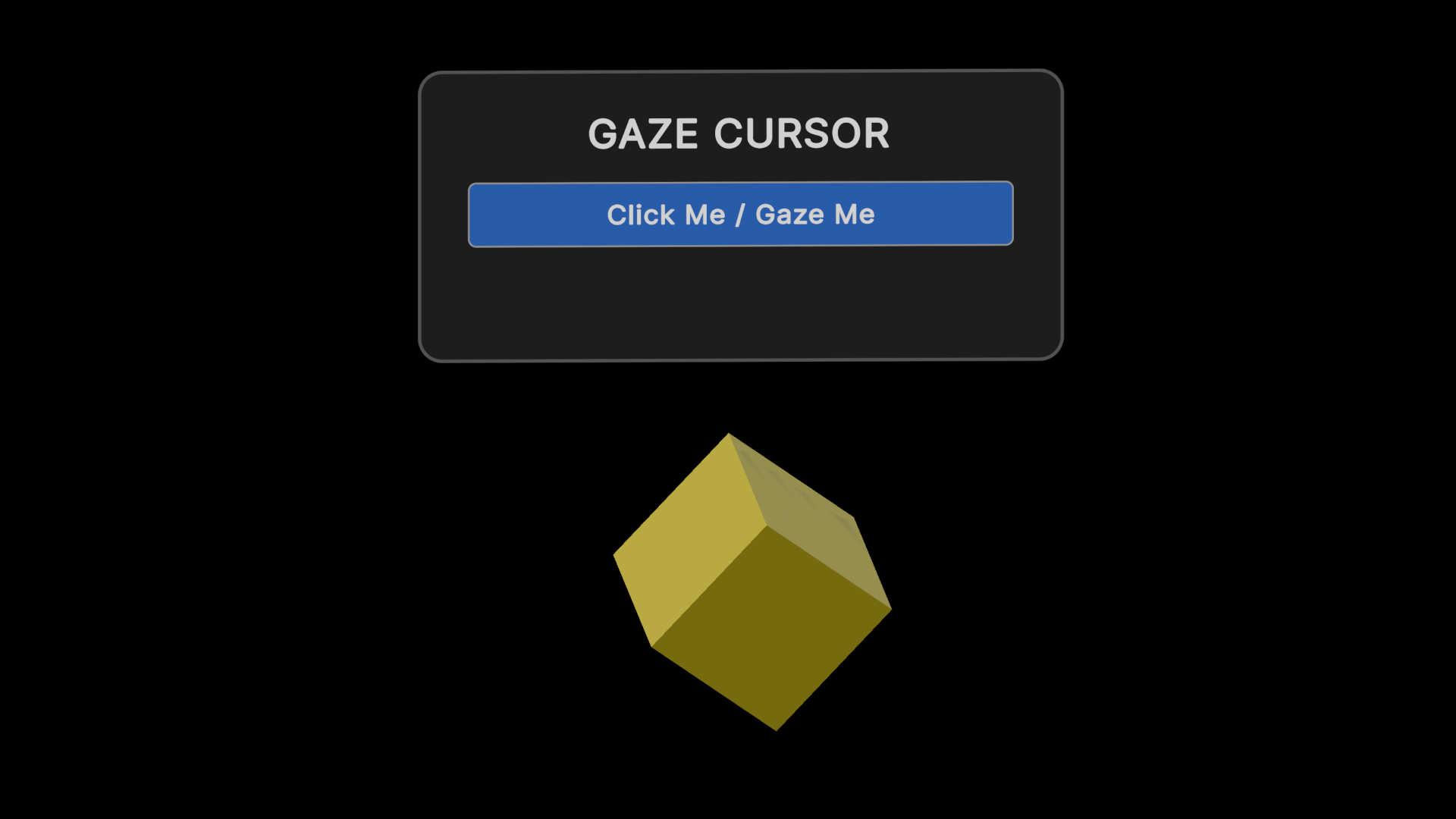
1. Gaze at Target: The user directs their gaze toward the desired interactive element. In this instance, the user is looking at the cube itself.
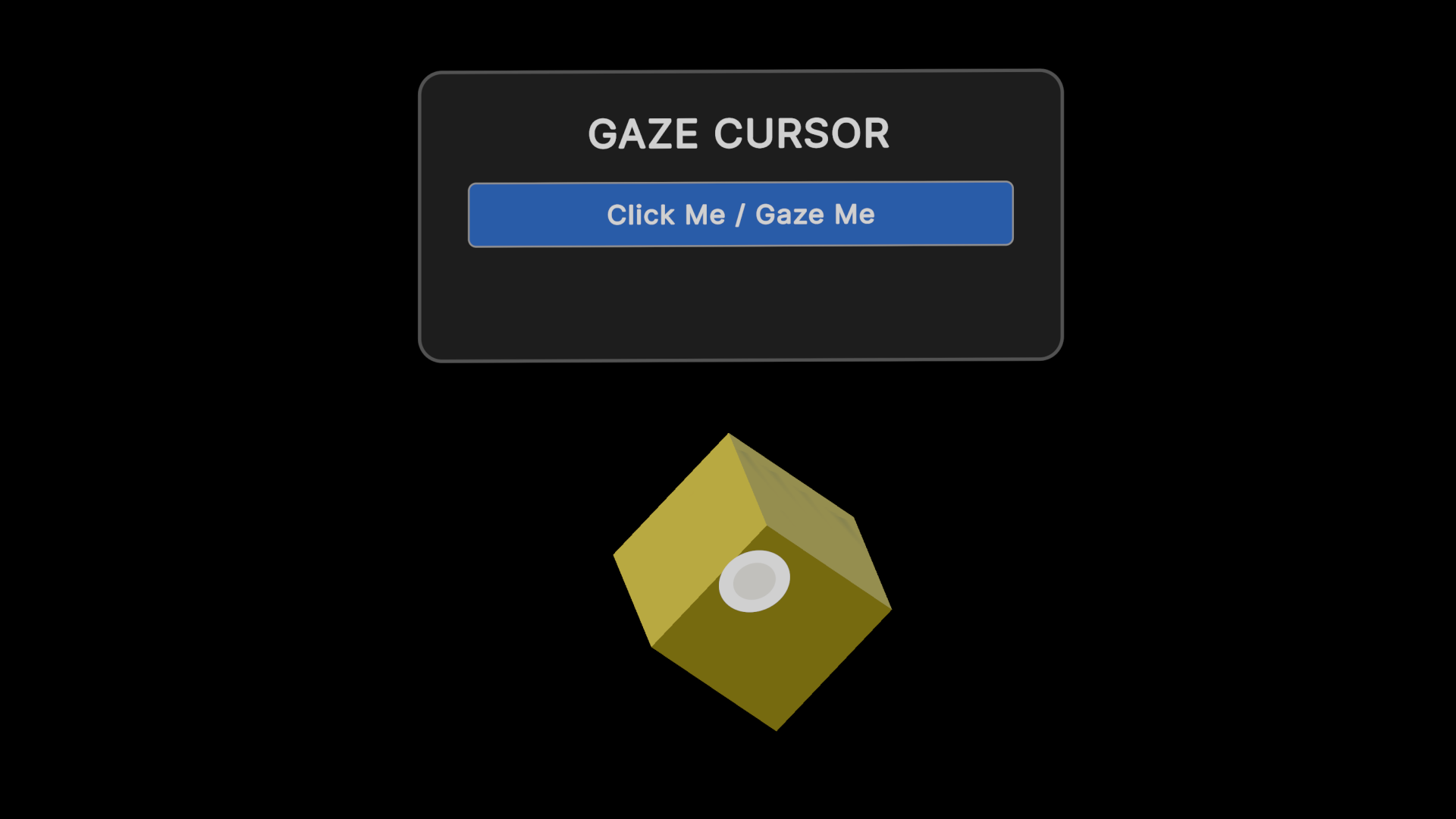
2. Dwell and Feedback: To initiate the selection, the user must maintain their gaze on the target. A visual cue, such as a filling ring or growing reticle, appears to provide feedback. This indicator informs the user that a selection is in progress and indicates the passing time before the action is triggered.
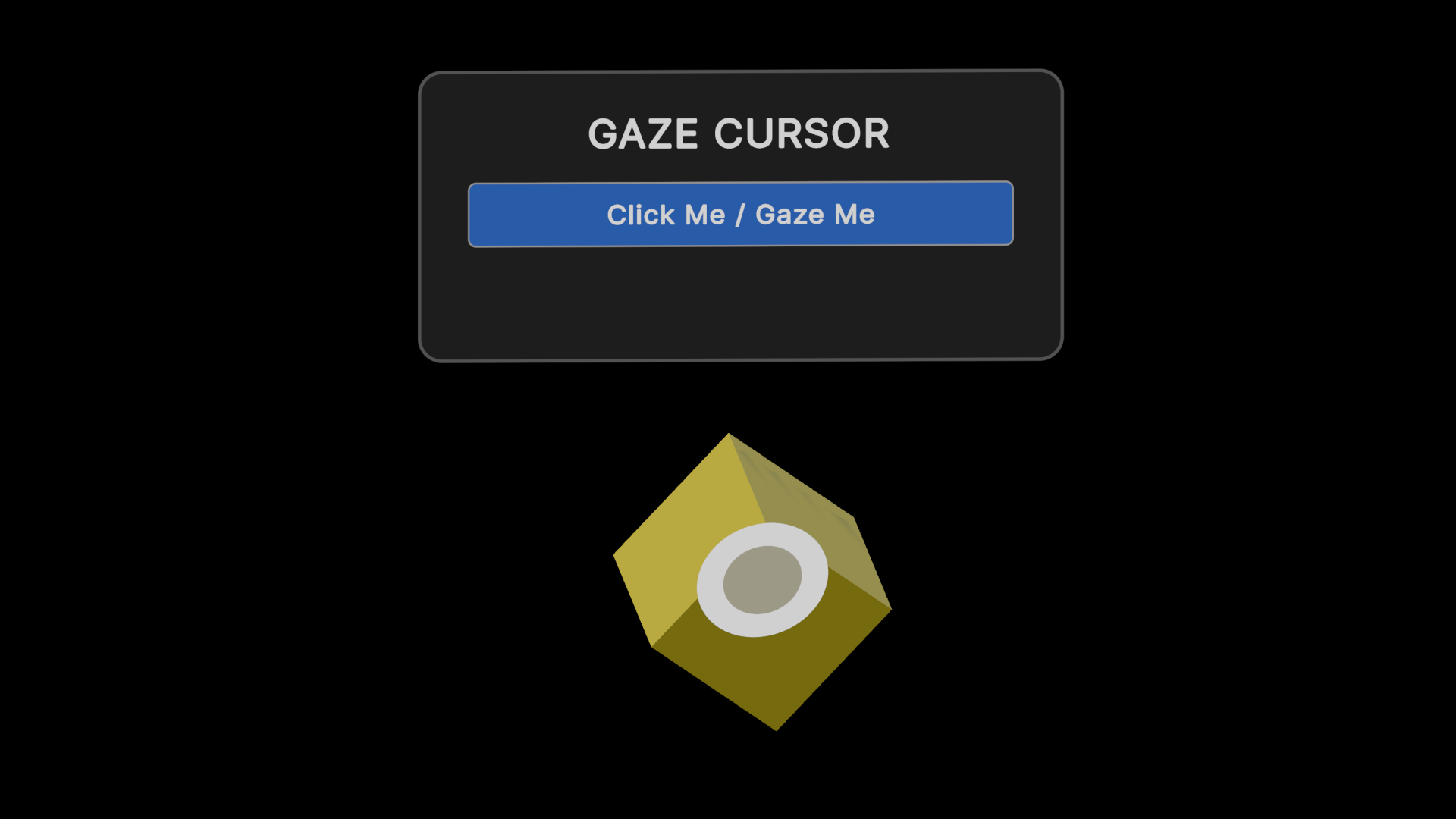
3. The user continues to gaze at the interactive element. The visual cue continues to indicate passing time.
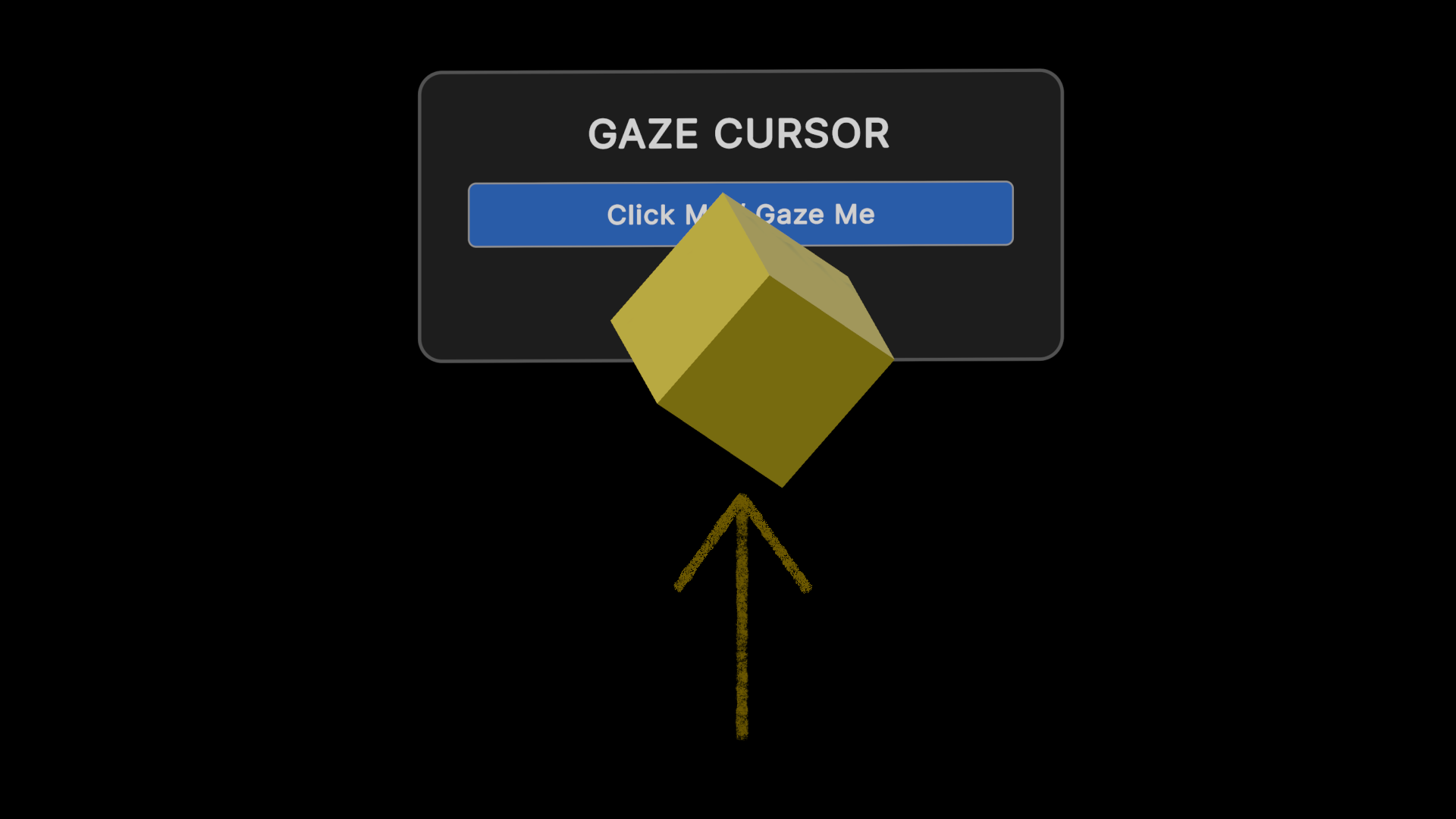
4. Selection Complete: Once the dwell time has been met, the system triggers a 'click' event. The visual feedback (e.g. the reticle) disappears, and the action state changes to 'selected'. Here, the cube performs a 'jump' action, confirming the action was successful and indicating the changed state.
Reference Pattern
// Pseudo-code for Gaze Cursor Implementation
// Tone: Technical Implementation Guide

Class GazeCursorManager : MonoBehaviour {

    // Configuration Parameters
    Float dwellThreshold = 1.5f;       // Duration in seconds required to trigger activation
    Transform trackingOrigin;          // Origin of the raycast (HMD centre or Eye Tracker)
    LayerMask interactableLayer;       // Physics layers containing valid UI and objects

    // User Interface References
    Image cursorReticle;               // The visual pointer component (e.g., a radial fill image)

    // Temporal State Management
    GameObject currentTarget = null;
    Float currentDwellTime = 0.0f;

    // Main Execution Loop
    Function Update() {
        PerformGazeRaycast();
    }

    Function PerformGazeRaycast() {
        RaycastHit hitInfo;

        // Execute raycast from the tracking origin
        If (Physics.Raycast(trackingOrigin.position, trackingOrigin.forward, out hitInfo, maxDistance, interactableLayer)) {
            GameObject hitObject = hitInfo.collider.gameObject;

            // Map the visual cursor to the intersection coordinate
            cursorReticle.transform.position = hitInfo.point;
            cursorReticle.enabled = true;

            If (hitObject != currentTarget) {
                // Disjoint detected: new target acquired, purge previous state
                ResetDwellState();
                currentTarget = hitObject;
            } Else {
                // Intersection maintained: advance the temporal state
                ProcessDwellTime();
            }
        } Else {
            // Null state: Raycast intersects no valid colliders
            ResetDwellState();
            currentTarget = null;
            cursorReticle.enabled = false; // Hide cursor to preserve immersion
        }
    }

    Function ProcessDwellTime() {
        currentDwellTime += Time.deltaTime;

        // Update the multimodal feedback (radial fill visual cue)
        Float progressRatio = currentDwellTime / dwellThreshold;
        cursorReticle.fillAmount = progressRatio;

        // Evaluate against the activation threshold
        If (currentDwellTime >= dwellThreshold) {
            ExecuteActivationEvent();
        }
    }

    Function ExecuteActivationEvent() {
        // Trigger the interaction logic on the target object
        currentTarget.GetComponent<Interactable>().InvokeClick();

        // Reset state to prevent immediate recursive firings
        ResetDwellState();
        PlayAudioFeedback("ConfirmationChime");
    }

    Function ResetDwellState() {
        currentDwellTime = 0.0f;
        cursorReticle.fillAmount = 0.0f;
    }
}
Dependencies
Gaze-Dwell Activation Behaviour: Essential to trigger events based on gaze and dwell time.
Enhancements
Assisted Dexterity Behaviour (smoothing) can be used in conjunction with the Gaze Cursor to allow users with head, neck or eye control difficulties to more easily select menu items, by smoothing out input.